
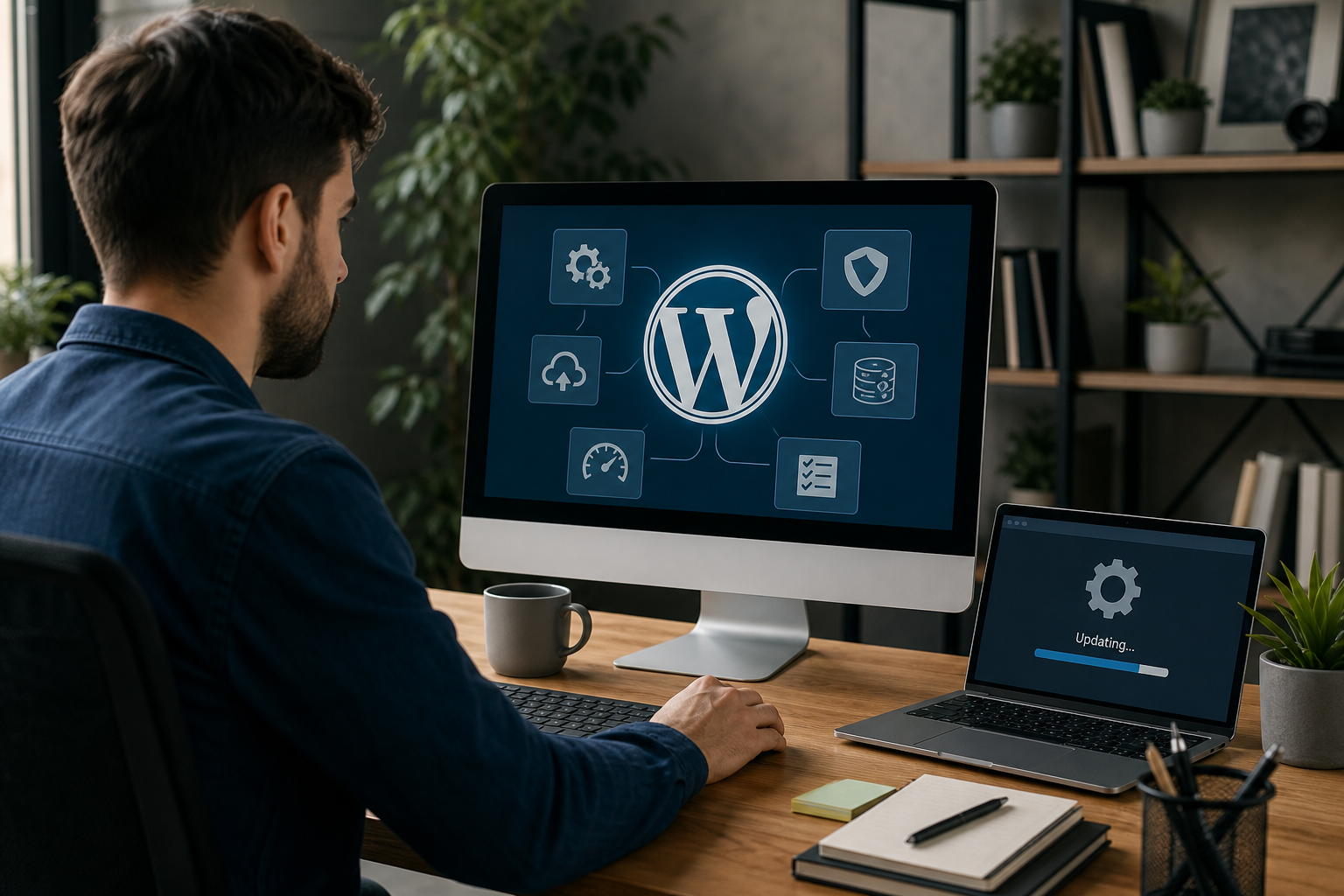
WordPress website maintenance tips: DIY vs managed service comparison
Keeping a WordPress site healthy requires a small set of recurring tasks done with consistent frequency and a tested recovery plan. This article lists seven essential maintenance items, each paired with practical DIY steps, recommended cadence, common failure modes, and what a managed plan handles for you. The checklist aims to help Calgary and Alberta businesses decide when to maintain in-house and when to hire local support.
1. Keep WordPress core, themes, and plugins updated
Why it matters: updates close security vulnerabilities and maintain compatibility between components. Unpatched plugins and themes are frequent attack vectors and a common reason for site errors after other changes.
- DIY steps: back up the site first, update on a staging copy, then apply updates to production in this order: core, theme, plugins. Test front-end and admin flows immediately after each update. For advanced users, WP-CLI can speed bulk updates on staging.
- Recommended frequency: check weekly for active sites; apply critical security patches as soon as they are tested in staging.
- Common failures: a plugin triggers a PHP error or a plugin/theme conflict breaks functionality. If that happens, restore the backup, disable the offending plugin on staging, and report the issue to the plugin author or replace it.
- Managed plan does: scheduled updates in a staging environment, compatibility testing, automatic rollback or hotfixes, and update logs so you get traceability without downtime.
2. Implement reliable backups and test restores
Why it matters: backups are only valuable when they are complete and restorable. Keeping a single copy on the same server means you have a single point of failure.
- What to keep: full site files, a database export, and incremental backups for high-change sites (orders, member data).
- Storage: at least one offsite location such as S3-compatible storage, a separate backup provider, or a different data center.
- DIY steps: schedule daily or weekly backups based on how often content changes, and perform a quarterly test restore to a staging area to confirm data integrity and restore time.
- Recommended frequency: daily for eCommerce and membership sites; weekly for informational brochure sites.
- Managed plan does: automated backups with offsite retention, monitored backup health, and guaranteed restore SLAs that specify recovery time objectives.
Tip: include a restore test in your maintenance calendar and document who can run it and where backups are stored.
3. Run regular security scans and harden your site
Why it matters: active scanning and basic hardening reduce the chance and impact of compromises. Scans find malware, suspicious file changes, and out-of-date components before attackers exploit them.
- DIY steps: schedule automated malware scans weekly, enforce strong admin passwords and unique accounts, limit login attempts, enable two-factor authentication for admin users, and use a web application firewall where possible.
- Recommended frequency: daily log review and alerts, weekly automated scans, immediate response to critical flags.
- Common failure mode: ignored alerts or slow detection. If the site is compromised, take it offline or into maintenance, restore from a clean backup, and run a forensic check to identify how the breach occurred.
- Managed plan does: continuous monitoring, real-time alerting, automatic quarantines, and dedicated incident response to contain and remediate compromises quickly.
4. Keep performance tuned: caching, images, and Core Web Vitals

Why it matters: page speed affects user experience, conversion rates, and search ranking signals. Performance often regresses after plugin or theme changes.
- DIY checks: ensure server-side or plugin caching is active, compress and lazy-load large images, serve static assets via a CDN, and remove or replace plugins that add heavy front-end assets.
- Recommended frequency: measure Core Web Vitals and page speed monthly and after any major content or plugin change.
- Common regressions: a new plugin adds render-blocking JavaScript or disables cache headers. If that happens, identify the plugin, test alternatives, or move that functionality to a lighter solution.
- Managed plan does: continuous performance monitoring, CDN integration, automated image optimization, and quarterly tuning to keep Core Web Vitals and page speed levels stable.
5. Database housekeeping and revision cleanup
Why it matters: an overgrown database increases backup size and slows queries. Post revisions, expired transients, and spam comments create unnecessary entries that bloat tables.
- DIY steps: always back up first, then remove old post revisions, clear expired transients, delete spam/trash comments, and run a safe optimize routine. Use trusted plugins or WP-CLI commands rather than unverified SQL unless you are confident with queries.
- Recommended frequency: monthly for active blogs, quarterly for low-traffic sites.
- Managed plan does: scheduled cleanups with restore points, monitoring of database growth trends, and verification of site functionality after housekeeping.
6. Regular content, SEO, and accessibility checks
Why it matters: technical SEO and accessible content preserve search visibility and broaden audience reach. Broken links, incorrect metadata, or a missing sitemap can reduce organic traffic.
- DIY tasks: run a broken-link scan monthly, confirm sitemap and robots.txt are current, spot-check structured data and title/meta tags for priority pages, and run basic accessibility checks after template changes.
- Recommended frequency: monthly for SEO checks and after any significant publishing or template rollout for accessibility.
- Managed plan does: periodic technical SEO audits, prioritized content recommendations, ongoing sitemap maintenance, and accessibility remediation tied to themes and plugins.
7. Troubleshoot common failures and when to call a Calgary pro

Why it matters: correct troubleshooting reduces downtime and the risk of losing data. Many common failures have fast fixes, but complex incidents require experienced diagnostics, reliable backups, and a tested rollback plan.
Fix WordPress stuck in maintenance mode
Immediate fix: when an update stalls WordPress can leave a .maintenance file in the site root, leaving the site unavailable. Remove that file with FTP or the host file manager and clear caches; then re-run the update. Full recovery steps are documented by reputable WordPress help resources for safe reference (maintenance mode fix).
- Rollback a broken update: restore the pre-update backup to staging, identify the failing plugin or theme, and either use an earlier stable version or replace it after vendor fixes.
- White screen of death: enable
WP_DEBUGon a staging copy to capture PHP errors, then fix the cause or restore a clean backup if needed. - When to hire: engage a local managed provider if you lack a tested restore plan, cannot restore the site within your acceptable downtime, or require a forensic security review after an incident.
Decision criteria for hiring a Calgary-based maintenance partner: documented and tested backups, staging and rollback capability, written response time guarantees, emergency incident scope, and reachable local support. For additional reading on business maintenance checklists, professional resources outline the tasks and frequencies that protect security and uptime (maintenance checklist).
DIY vs managed maintenance: a quick comparison
- DIY: lower ongoing cost and full control, but requires time, technical skill, and strict testing discipline. Risk increases if you lack automated backups, staging, or rollback routines.
- Managed plan: recurring fee, reduced operational risk through automation, staging, proactive monitoring, and incident response. Best for revenue-critical sites, eCommerce, or teams without dedicated WordPress expertise.
Frequently asked questions
How often should I update WordPress core, themes, and plugins?
Check for updates at least weekly for most business sites. Apply security patches immediately after testing in staging. If the site is mission critical, consider an automated workflow that includes monitoring and rollback capability.
What steps fix WordPress when it gets stuck in maintenance mode?
Remove the .maintenance file from the site root via FTP or your host file manager, clear caches, and re-run the update. If problems persist, restore from a known-good backup and run updates in staging. See a step-by-step recovery for trusted instructions (maintenance mode fix).
Are host backups enough or should I run a separate backup?
Host backups are useful but not always sufficient. Maintain at least one offsite backup you control and perform periodic restore tests to ensure recoverability and acceptable restore times.
How do I decide between doing maintenance myself or hiring a managed plan?
Choose DIY when you have the time, technical skill, and a strict testing routine. Choose managed support when the site generates revenue, you need fast recovery SLAs, or you prefer to offload monitoring, updates, and incident response to specialists.
What should I expect from a Calgary-based maintenance provider?
Expect documented backup and restore tests, scheduled updates with staging and rollback, security scanning, performance monitoring, and a defined emergency response time. Confirm local contact methods and support hours before signing up. For local development and ongoing support options, review services from reputable Calgary providers such as Global iTech Systems Global iTech Systems.
Key takeaway: a concise seven-point maintenance routine—updates, backups, security, performance, database housekeeping, content/SEO checks, and a clear troubleshooting plan—keeps WordPress sites resilient. If your team cannot guarantee quick restores, staging, and tested rollbacks, a managed plan with a documented SLA and local reachability reduces operational risk and helps you focus on growth.